Configure Schematics
In Wood InsightsPlatform (WIP), you can create, edit or delete schematics using the Schematic Editor as described below.
Set Up Schematics
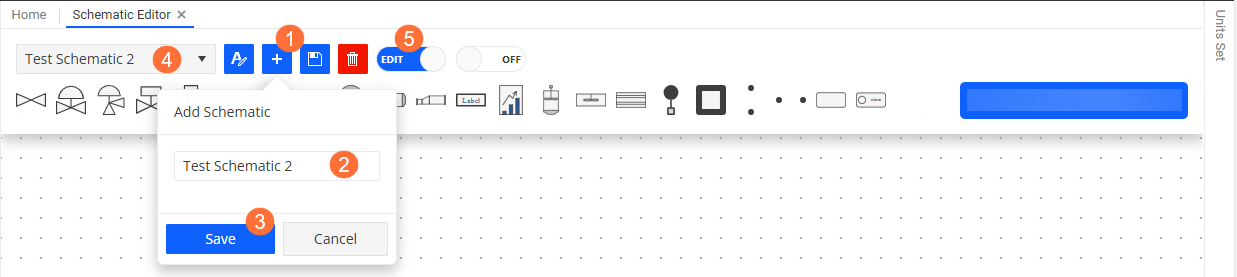
Choose from the menu.
On the Schematic Editor pane, click
 on the toolbar on the top of the page.
Enter a name for the new schematic and click Save.
The newly created schematic is selected automatically. If another schematic has unsaved changes, the usual save/discard/cancel prompt protects that draft.
Switch to editing mode using the View/Edit toggle button on the toolbar.
Result
A new row is added to the toolbar containing various schematic elements.
Use the following functions to set up your schematics:
Add Elements
To add a new element, drag the required element from the toolbar and drop it to the editor screen area. You can drag around the element to the required location whenever it is required.
Connect Elements
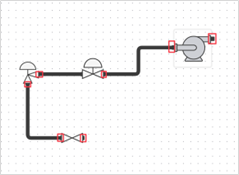
Each element has a handle that indicates possible connection points. Press a connection point and drag it to connection point of another element to form a connection.
Delete Elements
To delete an element, select it and press Delete / Backspace on your keyboard.
Configure Elements
When you click an element in the editor, a dialog appears, where you can define properties specific to the element type. For more information, see Configure Schematic Elements.
Copy&Paste Elements
You can use the standard Ctrl+C and Ctrl+V keyboard shortcuts to copy and paste schematic elements.
Toggle Snap Modes
You can use the SNAP/OFF toggle button on the toolbar to switch between auto snap and free place modes. This determines whether nodes are aligned based on their proximity to other nodes.
Click
 on the toolbar to save your changes.
The toolbar shows Unsaved, Saving, Saved, or Failed to indicate the state of your changes. Changes made while a save is in progress remain unsaved until you save again.
Caution
The editor does not automatically save. When switching schematics with unsaved changes, choose Save and switch, Discard, or Cancel. If saving fails, your changes remain in the current editor. Refreshing or closing the browser with unsaved changes also triggers a browser warning.
Undo and redo apply only to the current schematic. Switching schematics starts a new undo history.
Saves compare the version originally loaded by the editor with the current server version. If another user or tab changed or deleted the schematic, saving fails with a conflict message instead of overwriting their work. Your diagram, name, and undo history remain in the editor, and Save and switch does not navigate away.
A background refresh does not silently advance your draft’s version. Only your own successful save advances it, including when you made more edits while that save was pending. To resolve a conflict, keep the draft open to retain your work, or explicitly discard it, reopen the latest schematic, and reapply the required changes. Unsaved drafts do not survive a browser reload.
The selector lists all schematics for the current tenant rather than silently stopping at 100.
Organize Schematics in Folders
The editor’s Library is independent of the main navigation hierarchy. Its search, selected document, and expanded folders do not change the main hierarchy’s expansion state.
In Edit mode, right-click a folder or the library background and choose Add > Folder to create a folder, including an empty folder. Choose Add > Schematic on a folder to create a document inside it. Names are plain names; folder membership is stored separately.
Right-click a folder or schematic to Rename, Move to folder, or Delete it. A folder can only be deleted when empty. Renaming or moving a folder preserves its contents and document names. Save or discard unsaved changes before renaming, moving, or deleting the active schematic through the library.
Folder management uses the existing schematic modification and deletion permissions. View mode allows opening schematics without exposing editing actions.
The API gateway includes SQLite and PostgreSQL migrations that convert existing slash-delimited names into folder records and plain document names while preserving schematic IDs, graph data, and creation dates. Deploy the updated API gateway alongside this UI; its normal database migration startup applies the schema change.
Edit Schematics
In the Schematic Editor pane, you can edit schematics in the following ways:
You can update the name of a schematic in any view (View/Edit) by using the
 button on the toolbar and changing the name as required. Saving the name also saves the current diagram changes.
You can change schematics, that is add, remove, or move around elements or connections by switching to editing mode using the View/Edit toggle button on the toolbar and using the functions described in Set Up Schematics.
You can edit individual elements of schematics as described in Configure Schematic Elements.
Configure Schematic Elements
In the Schematic Editor pane, you can configure the properties of elements by clicking them in Editing mode (View/Edit toggle button switched to Edit) and filling in fields in the dialog that opens. The available options in the dialog depend on the type of the element.
Element configuration is a draft until you select Apply. Discard returns the fields to the last applied configuration; closing the configuration before applying drops its unapplied changes. Applying a configuration updates the schematic draft, which still needs to be saved from the editor toolbar to persist the schematic.
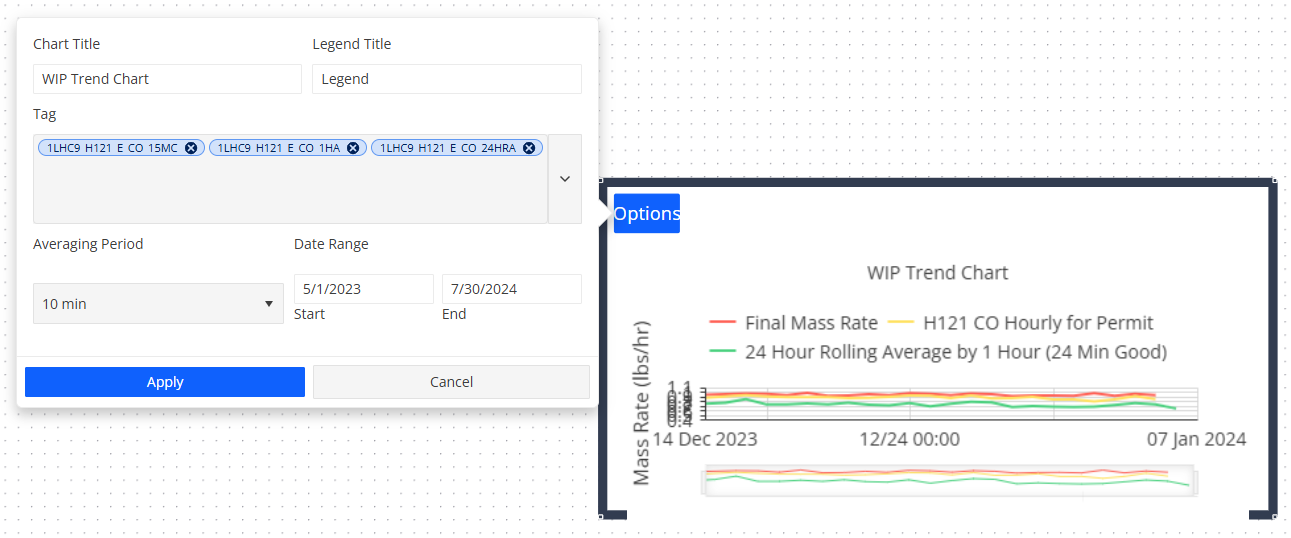
Many of the schematic elements have the Chart Options section in the configuration dialog, which allows you to assign a chart to the element. This chart will appear when the user clicks the relevant node when viewing the schematics. In this section you define the following parameters:
Field |
Description |
|---|---|
Chart Title |
Specify a title for the chart, which will appear at the top of the chart. |
Legend Title |
Enter a title to be applied for the legend. |
Tag |
Select the tag that you want to assign to the schematic element. |
Averaging Period |
Select the time interval for averaging data points displayed on the chart. Options include None, 10 minutes, 1 hour, and 1 day. Choosing None displays raw values, while selecting a time interval applies averaging over the specified period, showing averaged values on the chart. |
Start/End |
Select the beginning and ending date for the period to be displayed on the chart. These fields allow you to customise the time frame of the data displayed, ensuring you can focus on the specific period of interest. |
Other configuration options are specific to the element type. For more information, click the relevant element type below:
Valves
You can choose from six different types of valves:
Gate Valve
Control Valve
Choke Valve
Actuator Valve
Cylinder Actuated Valve
Hand Valve
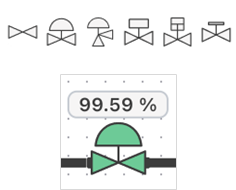
The value of the valve will be displayed automatically above it. You can use the general Chart Options configuration options for each valve. You can also assign a data map to each valve, which will change its color based on a specified value. For more information, see Configure Schematic Data Maps.
Pumps
Text
Compressors
Text
Tanks
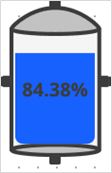
You can use the general Chart Options configuration for tank elements. Additionally, you can assign a data map to each tank, allowing it to change color based on a specified value.
Tanks are unique in that they can visually indicate a liquid level on the node. This is automatically done once a tag has been assigned to the node.
Vessels
Pigs
Labels
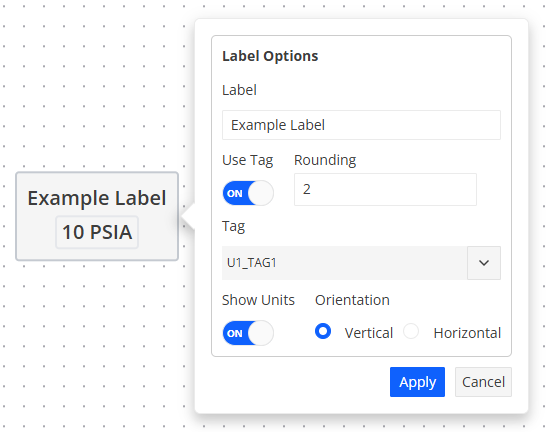
Labels can be used to display text or text with a tag value. By enabling the Use Tag option, additional fields will appear, which allow you to assign a tag, apply rounding to its value and specify how the value appears on the label.
Charts
Charts can be placed on schematics to visually show how data changes over time. You can assign multiple tags to a chart node using the Options button in the upper left corner of the element. The historical values of each tag will be distinguishable by color, as indicated by the legend above the chart.
Mixers
Heat Exchangers
Meters
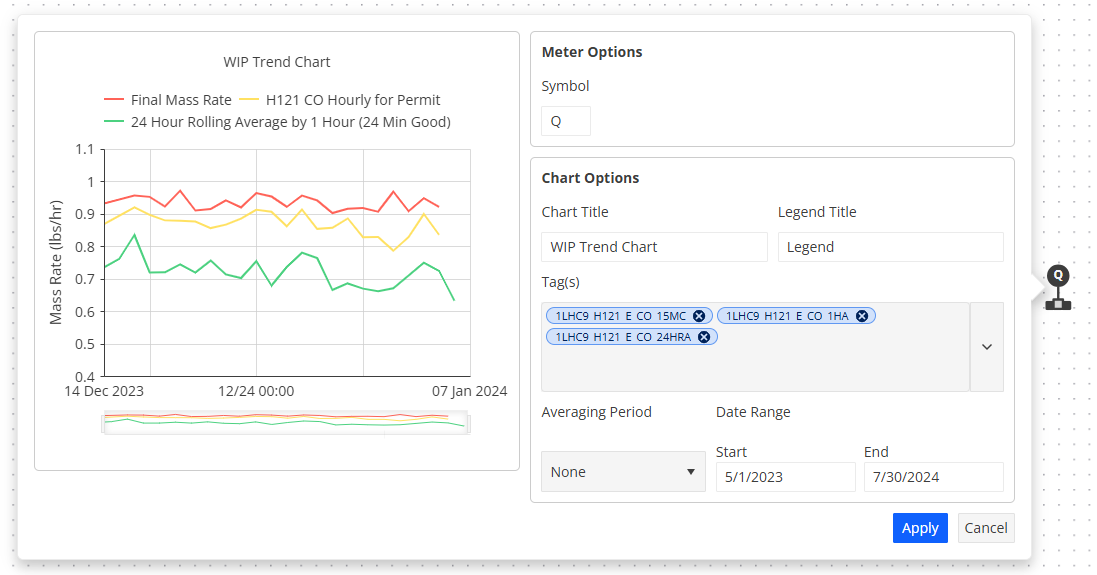
Meters have a “symbol” parameter that is displayed on the node itself. You can assign this symbol in the element’s configuration options. Additionally, you can assign multiple tags to meters, allowing them to display historical values for different tags.
Tees/Crosses
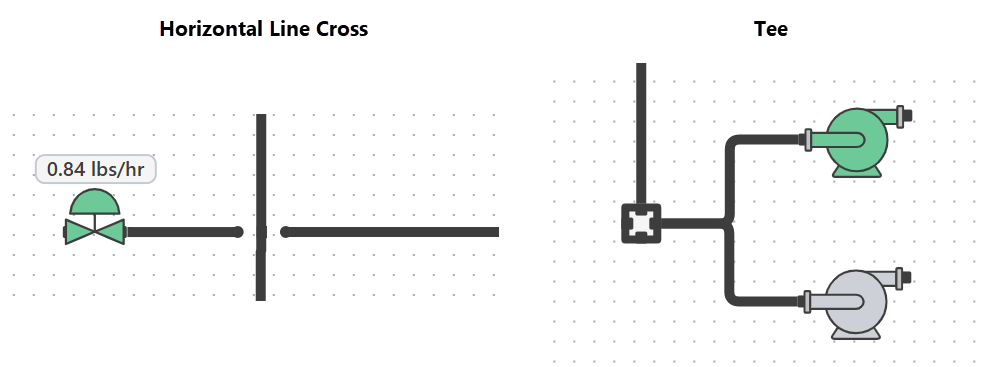
Tees and crosses are special nodes used to represent junctions or jumps over lines in schematics.
Tee: A four-way connecting point that allows for the intersection of lines.
Cross: Represents a line jump, allowing lines to pass over each other without intersecting. There are two types of crosses:
Horizontal Cross: Represents a horizontal line jump.
Vertical Cross: Represents a vertical line jump.
Source Destinations
Alarms
Alarms are similar to labels, but they have additional features. They can be assigned a data map and are capable of displaying a light based on the value of the assigned tag.
See also